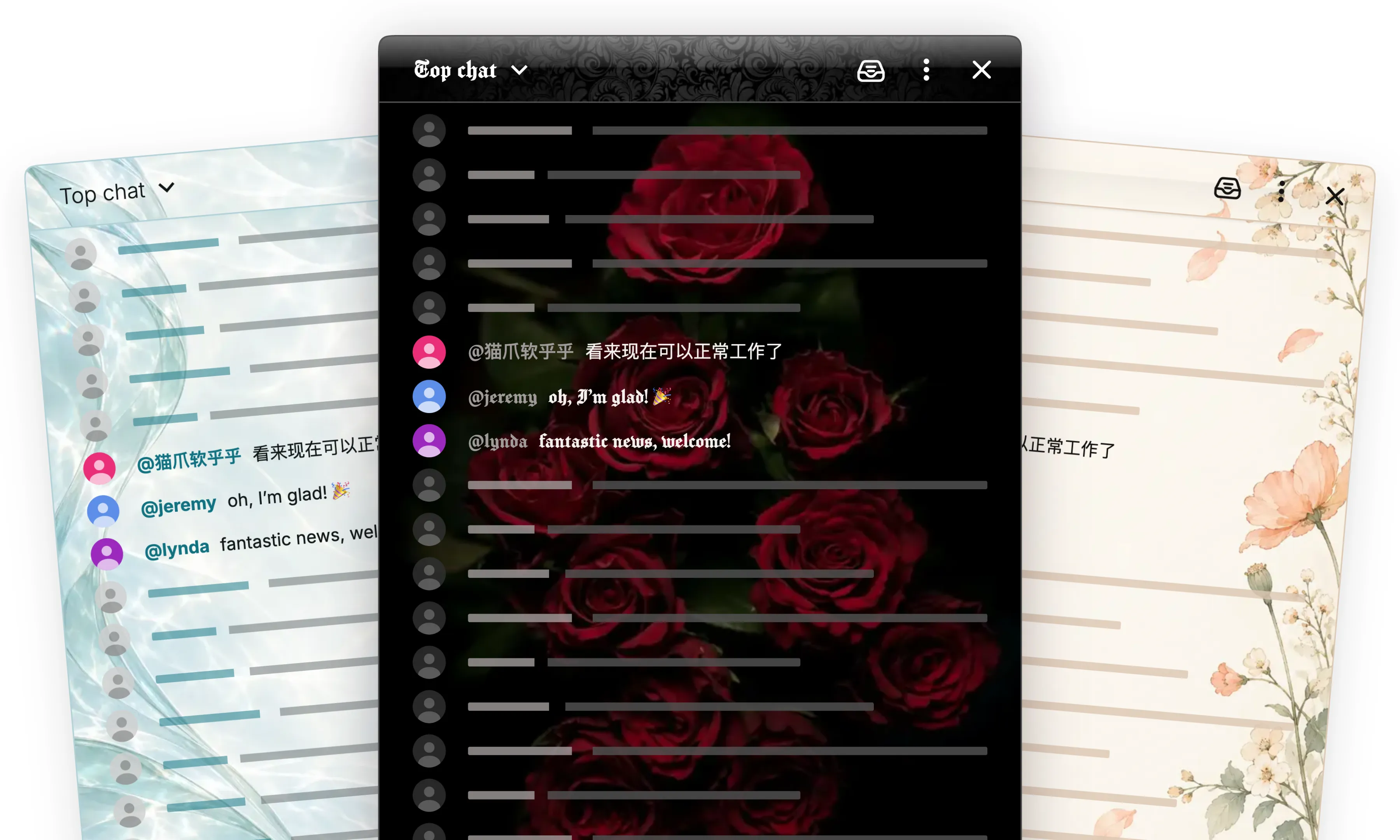
Aero gave YouTube chat a different feel. The new Theme Editor lets you build a look of your own, from a quiet change of color to something with a lot more personality.
Choose your palette, pick a font, and add backgrounds to the header, message feed, or composer. The theme carries through the chat menus and Chat Enhancer’s panels, so the details belong together.
 Chat Enhancer
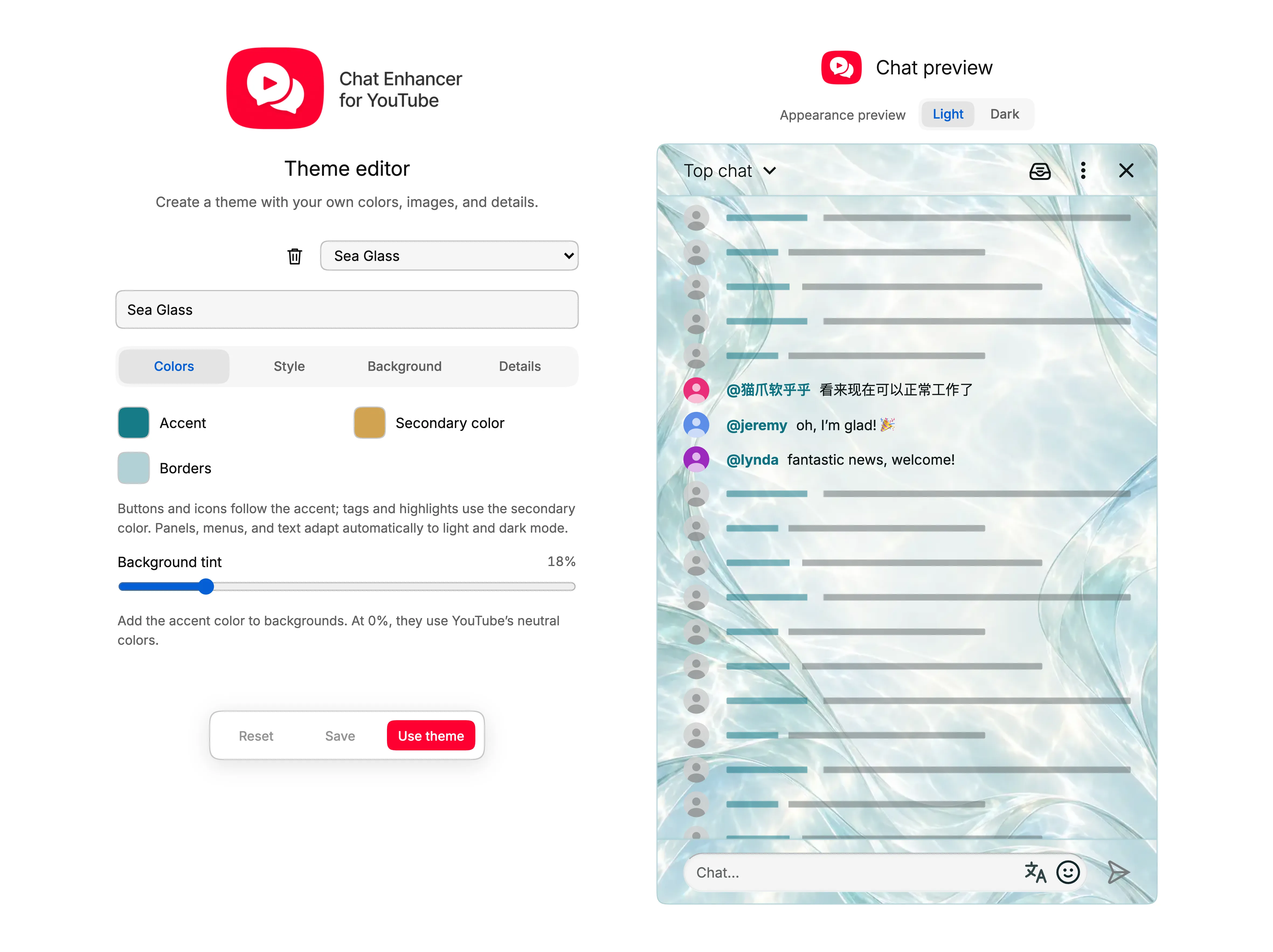
Start with a palette
You do not need to choose a separate color for every button and icon. Set an accent, a secondary color, and a border color. The editor uses them to color the smaller details, including buttons, quick toggles, panel icons, and message highlights.
Use Background tint to decide how much of your accent comes through in the backgrounds. Keep it low for a more neutral chat or turn it up for a stronger color identity.
Give it a finish
The finish changes the feel of the surfaces:
- Flat keeps them simple, without reflections.
- Glossy adds shine to controls and a subtle highlight to opaque panels.
- Glass uses soft reflections and translucent, blurred panels.
Open Inbox or a profile in the preview to see the difference. You can also adjust corners, shadows, and the amount of shine. The font applies across the theme, with styles ranging from clean and familiar to playful, gothic, and pixel lettering.
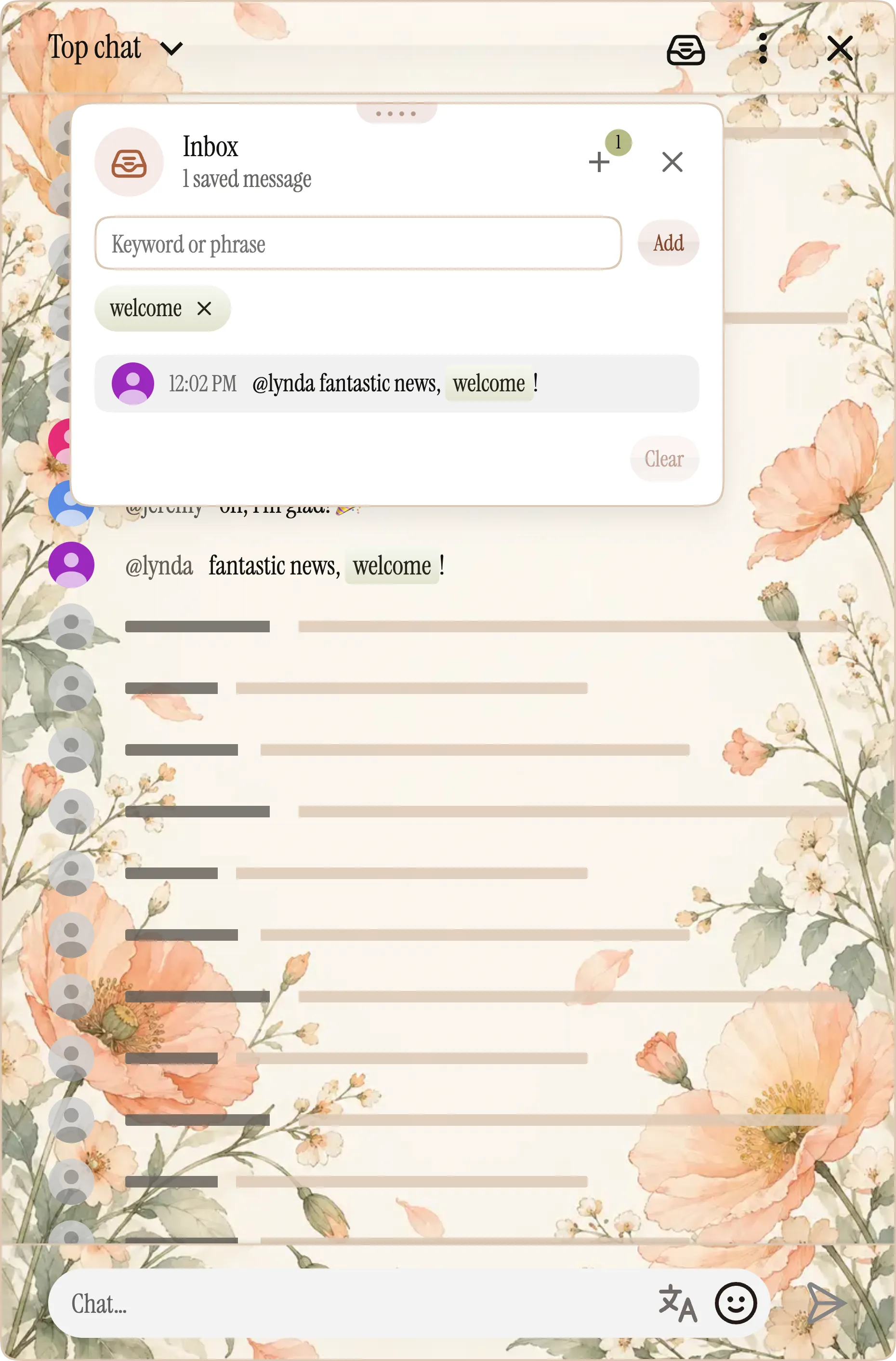
Make room for your own artwork
The header, chat feed, and composer each have their own background controls. Use a solid color, a gradient, or upload an image—including an animated GIF. Adjust its placement and zoom to frame the part you want to show.
Switch the preview between Light and Dark as you work. The palette adapts automatically, and backgrounds have an optional dark-mode image if you want a different composition. Text over images uses automatic contrast, with a Light or Dark override when the artwork needs it.
Experiment before you use it
The preview is a sample chat inside the editor. Trying a color or changing a background there does not change the YouTube tabs you have open.
Press Ctrl+Z or ⌘Z to undo an edit. Reset returns to the theme’s last saved version, or to the defaults for a new theme.
When you are happy with the result:
- Save keeps your work while leaving the current chat appearance as it is.
- Save and use saves the theme and makes it your current theme.
Changing a saved theme’s name creates a new theme, so it is easy to keep a few variations. Your custom themes and their images are stored locally in your browser profile.
Open the Theme Editor
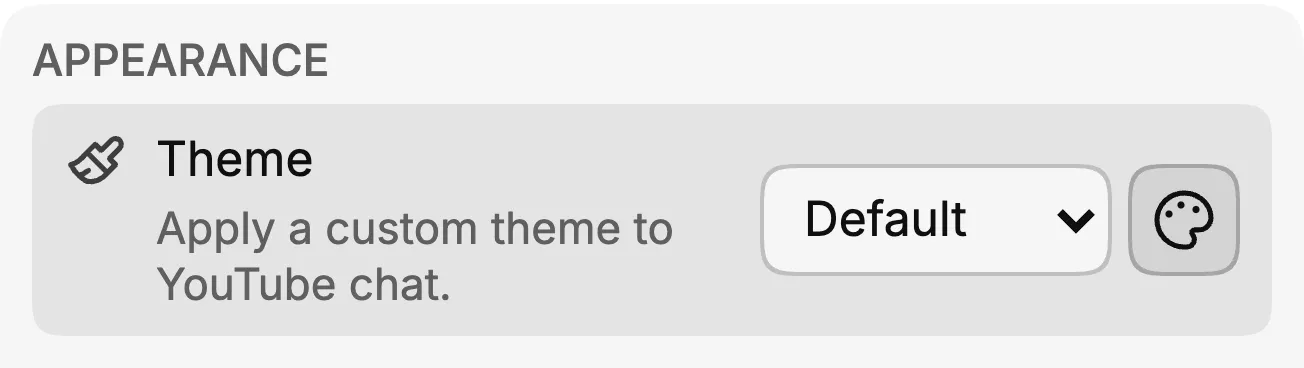
Open the extension popup, go to Settings, and click the palette button beside the Theme dropdown. Start with a new theme or choose one you have already saved.
You can also start from the preinstalled Aero theme and save your version under a new name.
A favorite color is enough to get started. The rest can come together in the preview.